Permissions and connection
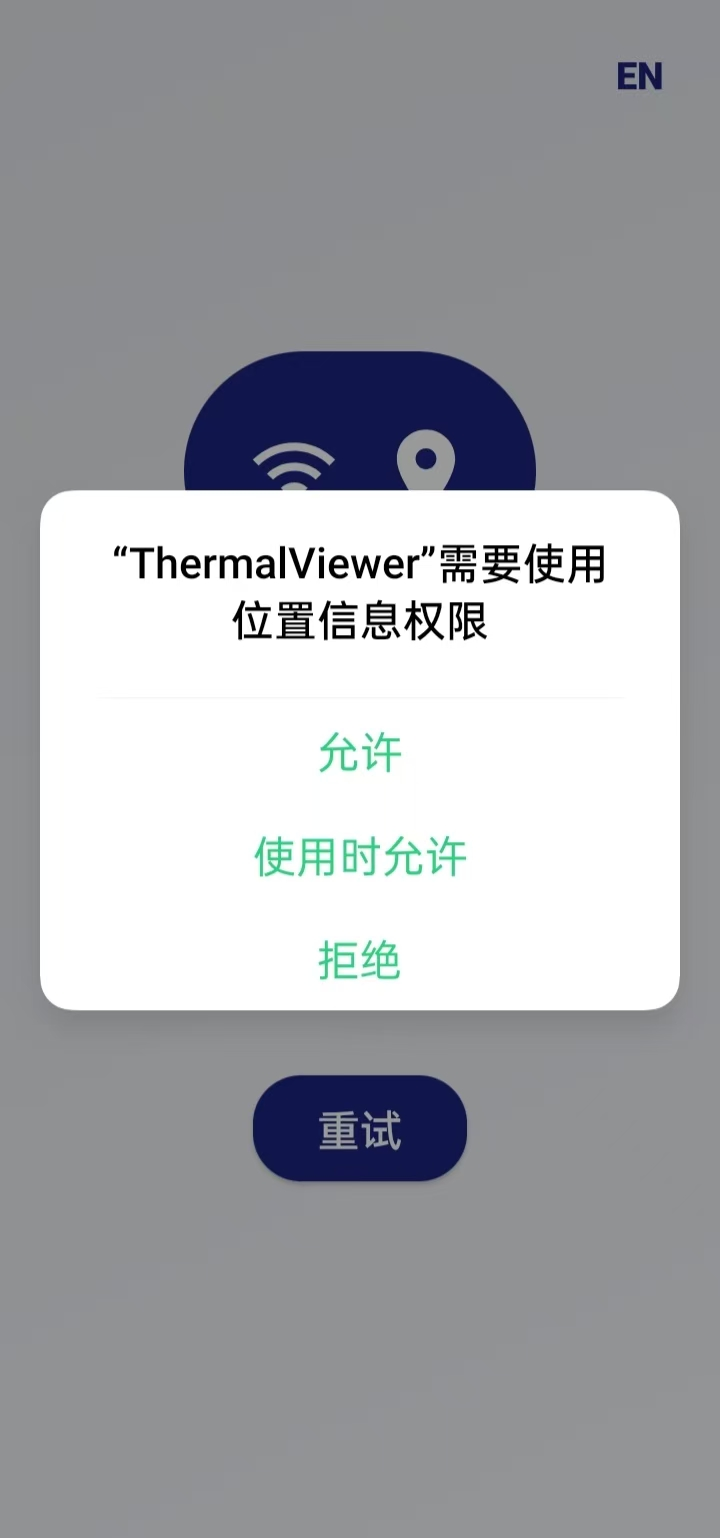
Allow location access
Section titled “Allow location access”When you first open the thermal imaging app, follow the app and system prompts to configure location access for the device connection process.
Connect to the device Wi-Fi
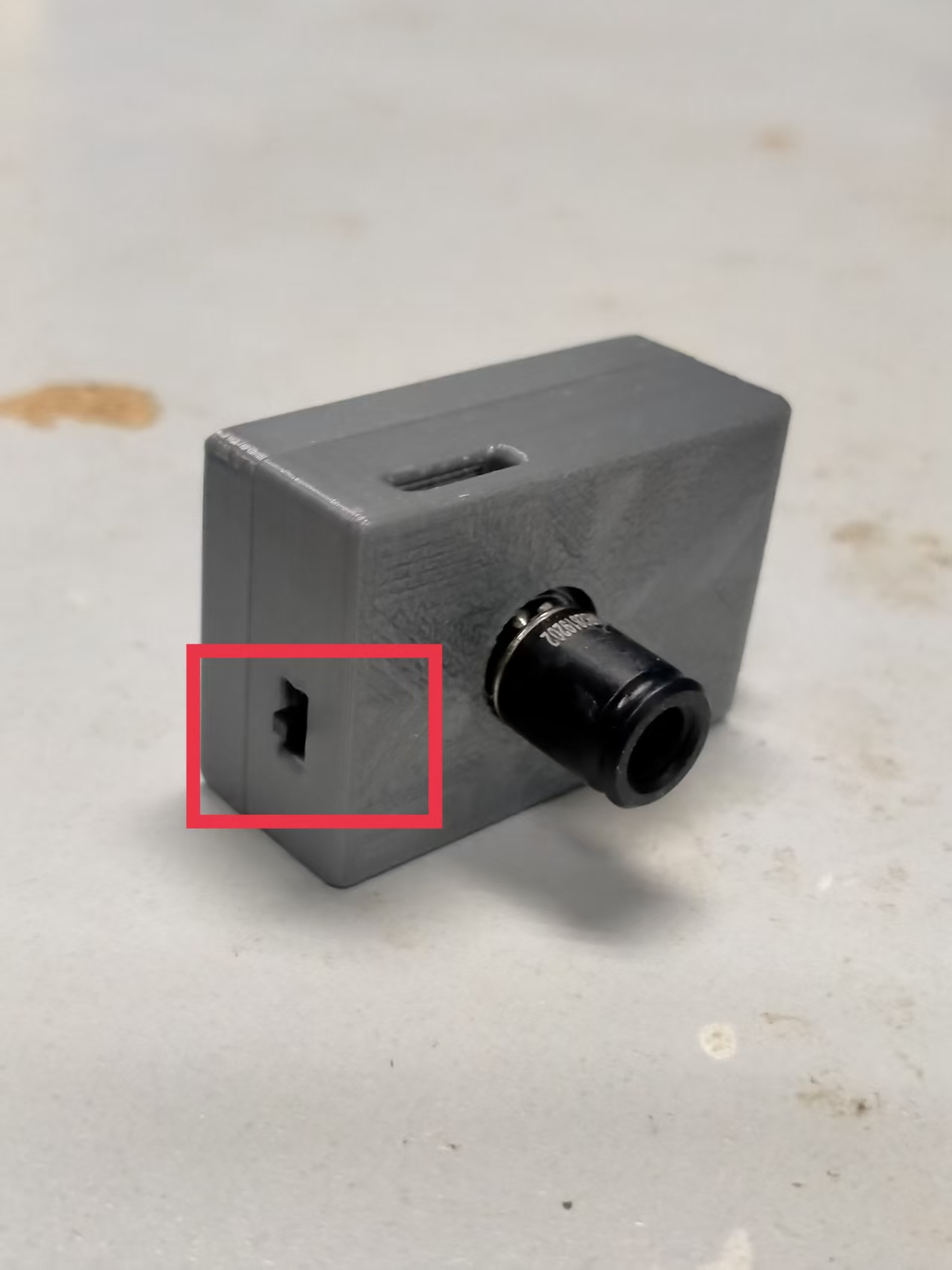
Section titled “Connect to the device Wi-Fi”- Switch on the thermal imaging device.
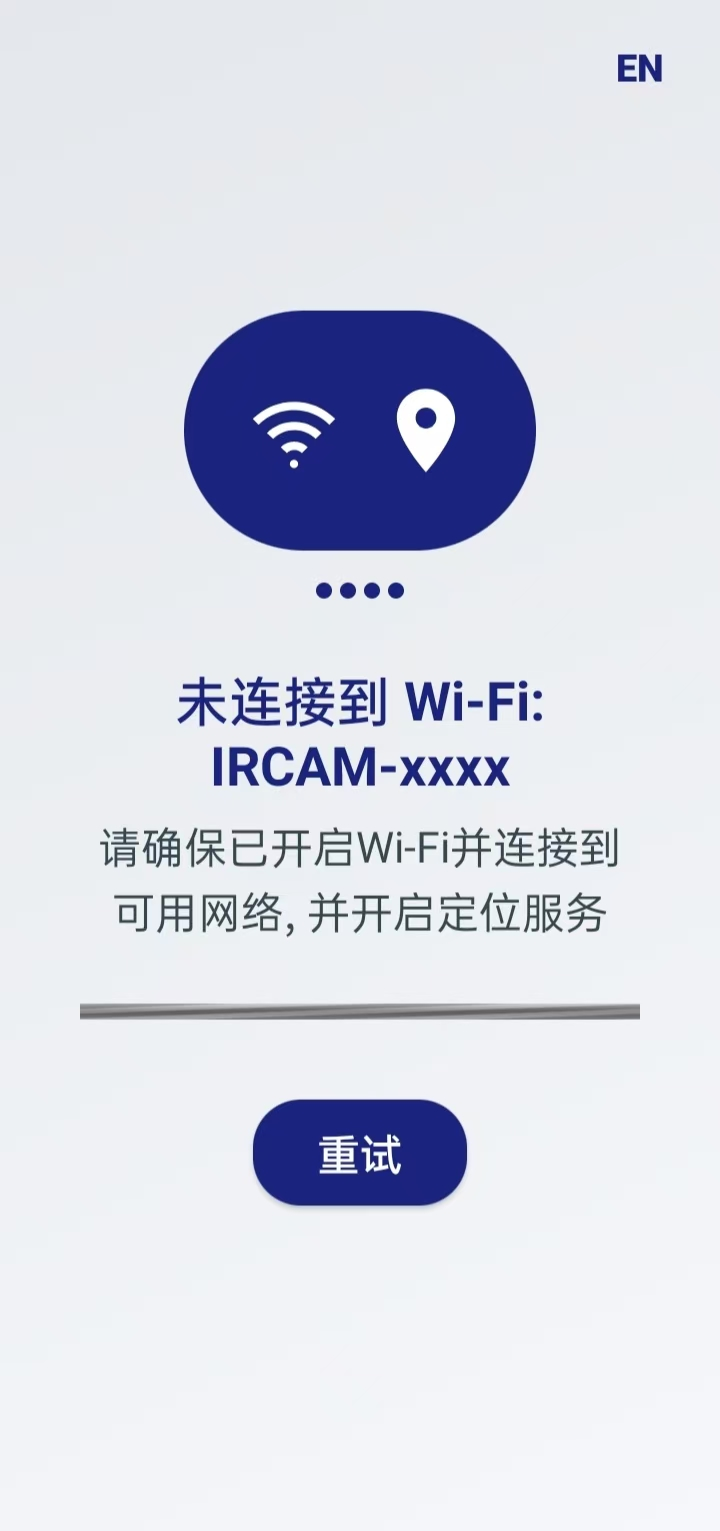
- Tap Retry (重试) in the app to open the Wi-Fi settings.
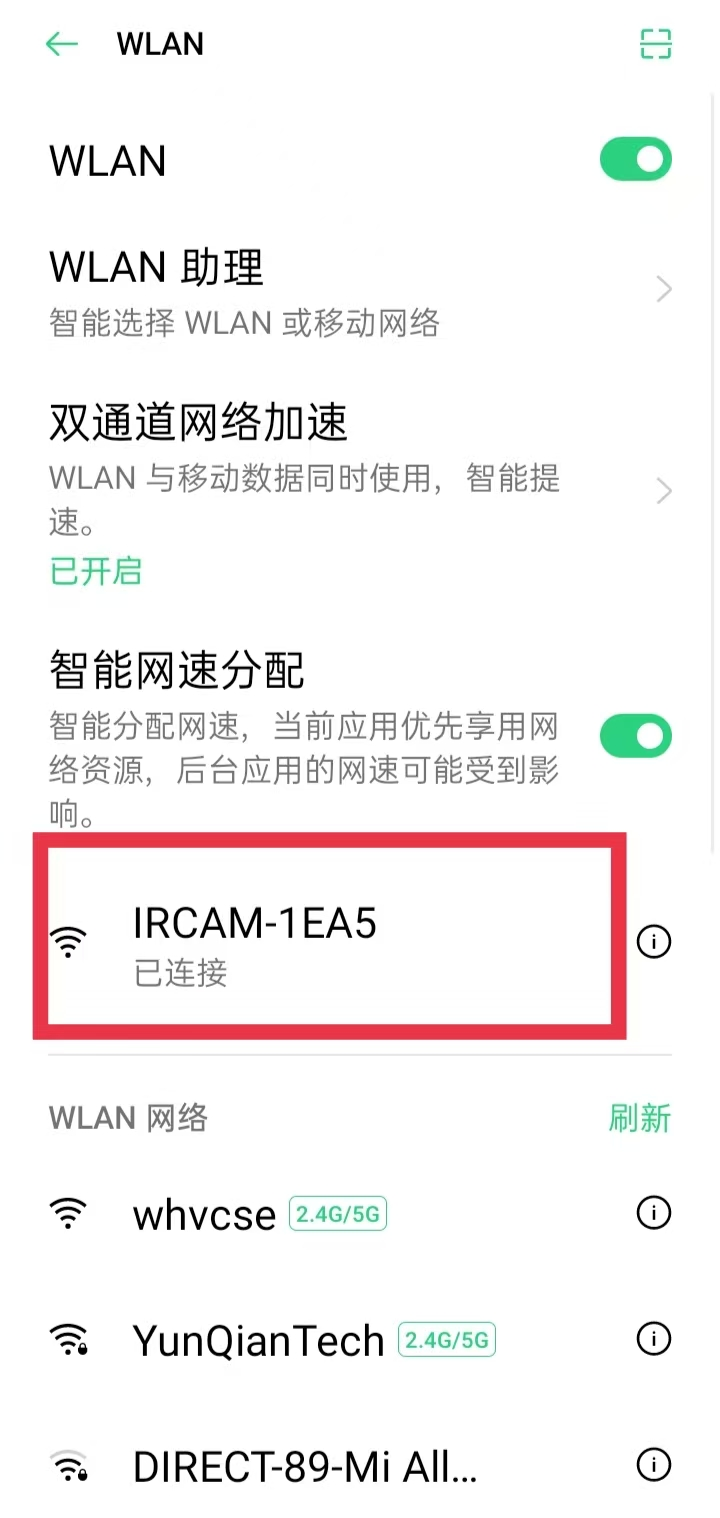
- Find and connect to the network named IRCAM-XXXX.
- Once connected, return to the app home screen.
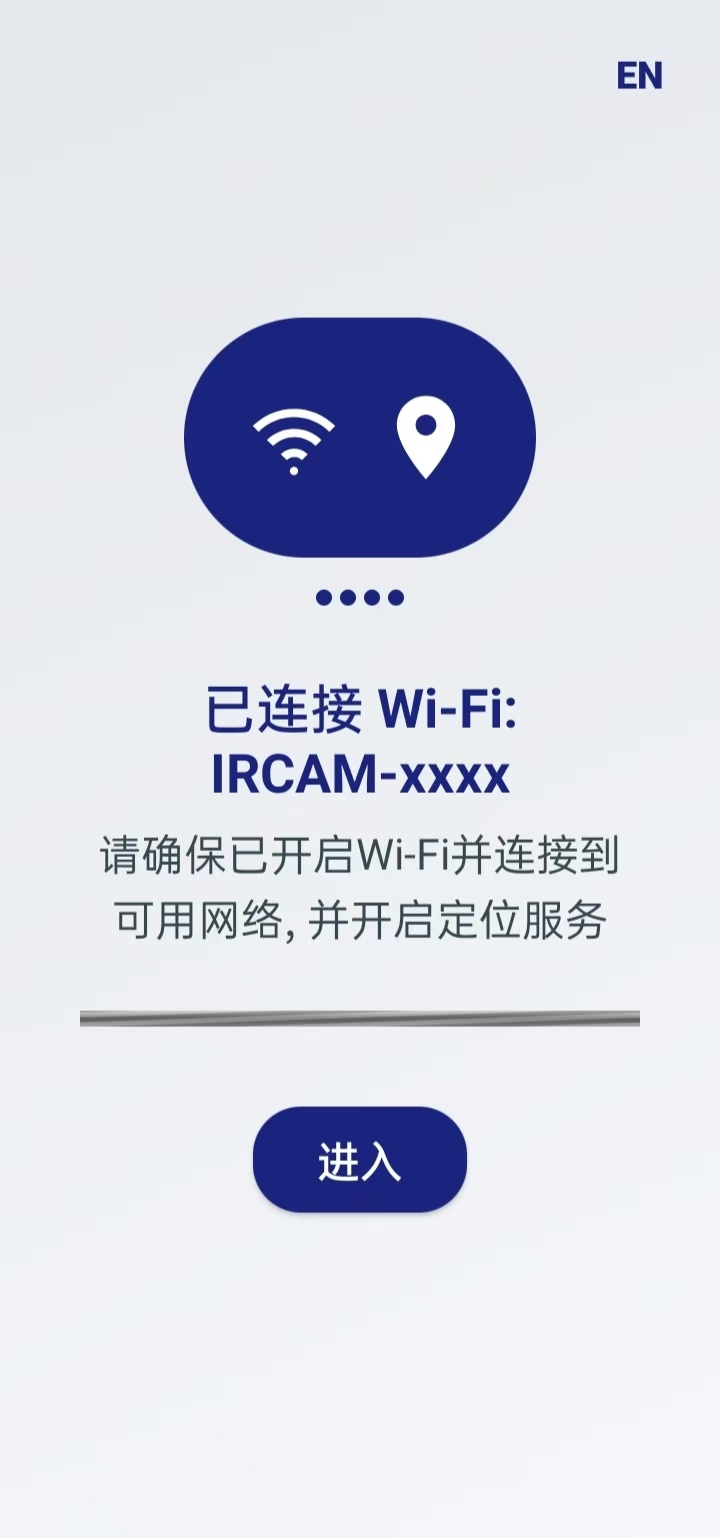
Enter the app
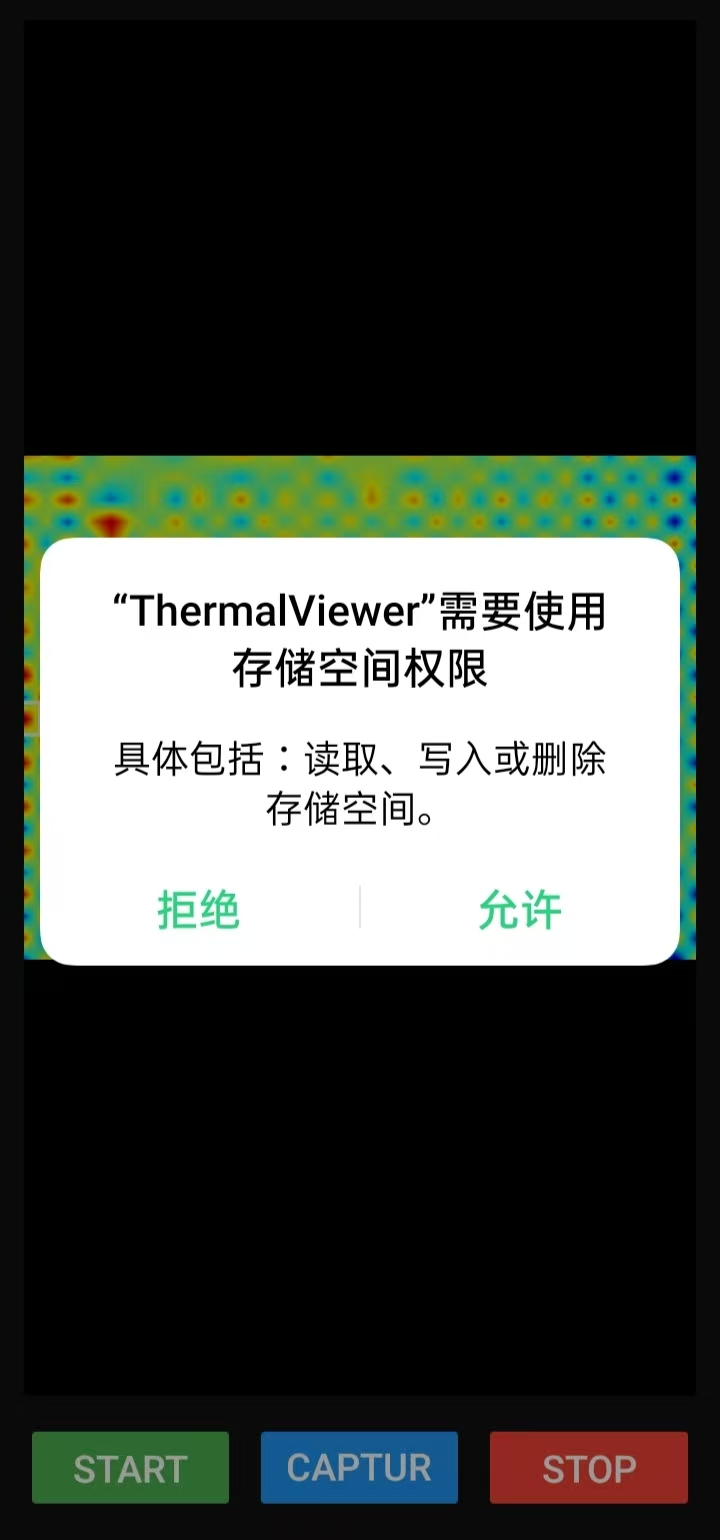
Section titled “Enter the app”Configure Wi-Fi, storage, and other permissions requested for the functions you are using, then tap Enter (进入). Permission names and authorization options may vary by phone OS version.
Next: Viewing and saving images.